
Back to Home
$addStringSelect
$addStringSelect adds a string select menu to an action row. String select menus let users pick from custom options you define with $addStringSelectOption.
Syntax
$addStringSelect[Select Menu ID;Placeholder;Min Values;Max Values;Disabled;Action Row ID]Select Menu ID: ID used to identify this menu in your command trigger.Placeholder: text shown when nothing is selected. Can be left empty.Min Values: minimum number of options that must be selected. Defaults to 1.Max Values: maximum number of options that can be selected. Defaults to 1.Disabled: set totrueto make the menu unclickable. Defaults to false.Action Row ID: ID of the action row to attach this menu to.
What happens
$addStringSelectcreates an empty string select menu on the specified action row.- You add options to it with
$addStringSelectOption. - The menu shows the options you added for users to pick from.
Example 1: Color picker
$addActionRow[actions]
$addStringSelect[pickColor;Choose a color;1;1;;actions]
$addStringSelectOption[Red;red;A bright color;;;pickColor]
$addStringSelectOption[Blue;blue;A calm color;;;pickColor]
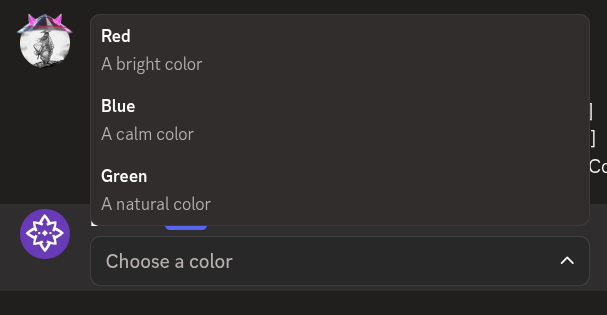
$addStringSelectOption[Green;green;A natural color;;;pickColor]What happens:
$addActionRowcreates an action row.$addStringSelectcreates a string select menu.- Three
$addStringSelectOptioncalls add color options to the menu.
The menu shows three color options to pick from.
Example 2: Multi-select menu
$addActionRow[actions]
$addStringSelect[pickAreas;Select areas;1;3;;actions]
$addStringSelectOption[North;north;;⛰️;;pickAreas]
$addStringSelectOption[South;south;;🌴;;pickAreas]
$addStringSelectOption[East;east;;🌅;;pickAreas]
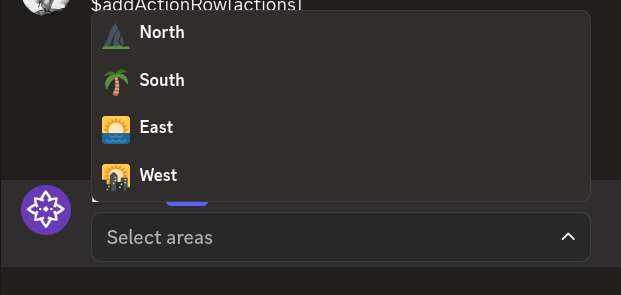
$addStringSelectOption[West;west;;🌇;;pickAreas]What happens:
$addActionRowcreates an action row.$addStringSelectcreates a menu that lets users pick up to three options.- Four
$addStringSelectOptioncalls add options with emojis.
The menu shows four options and users can select up to three of them.
Common uses
- Creating custom selection menus with your own options
- Building multi-select forms for user input
- Offering predefined choices in a clean dropdown
See also
- $addStringSelectOption: to add options to the menu
- $addActionRow: to create the action row for the menu