
Back to Home
$addStringSelectOption
$addStringSelectOption adds an option to a string select menu. Call this after $addStringSelect to build the list of choices.
Syntax
$addStringSelectOption[Label;Value;Description;Emoji;Default;Select Menu ID]Label: the text shown to the user (max 100 characters).Value: the value sent to your bot when this option is selected (max 100 characters).Description: additional text shown below the label. Can be left empty.Emoji: an emoji to display next to the option. Can be left empty.Default: set totrueto pre-select this option. Defaults to false.Select Menu ID: ID of the string select menu to add this option to.
What happens
$addStringSelectOptionadds a new option to the specified string select menu.- The option appears in the menu alongside any other options.
- If set as default, it is pre-selected when the menu opens.
Example 1: Multi-select options
$addActionRow[actions]
$addStringSelect[pickToppings;Choose toppings;1;3;;actions]
$addStringSelectOption[Cheese;cheese;Extra cheese;;;pickToppings]
$addStringSelectOption[Pepperoni;pepperoni;Spicy topping;;;pickToppings]
$addStringSelectOption[Mushrooms;mushrooms;Earthy flavor;;;pickToppings]
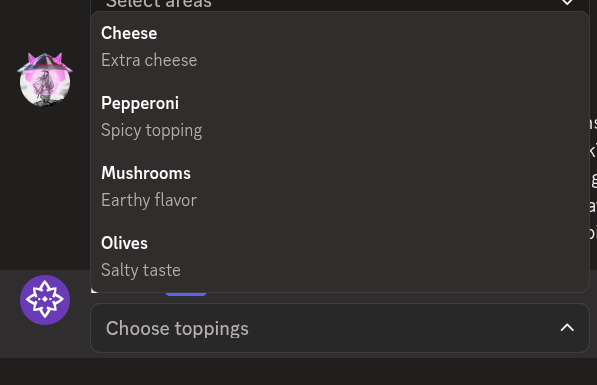
$addStringSelectOption[Olives;olives;Salty taste;;;pickToppings]What happens:
$addActionRowcreates an action row.$addStringSelectcreates a menu that lets users pick up to three options.- Four
$addStringSelectOptioncalls add topping options with descriptions.
The menu shows four options with descriptions. Users can select up to three.
Example 2: Option with a default
$addActionRow[actions]
$addStringSelect[pickSettings;Settings;1;1;;actions]
$addStringSelectOption[Dark Mode;dark;Switch to dark theme;🌙;true;pickSettings]
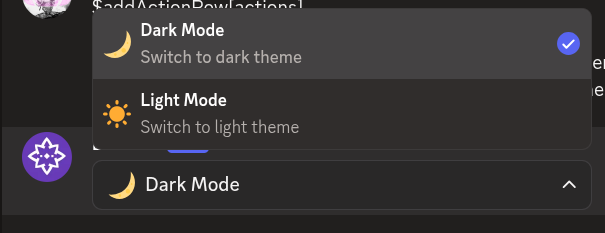
$addStringSelectOption[Light Mode;light;Switch to light theme;☀️;;pickSettings]What happens:
$addActionRowcreates an action row.$addStringSelectcreates a string select menu.- The first option has an emoji and is selected by default.
- The second option has an emoji and no default.
The menu shows both options with emojis, and Dark Mode is pre-selected.
Common uses
- Building custom menus with descriptive labels
- Adding visual appeal with emojis next to options
- Pre-selecting common choices using the default parameter
See also
- $addStringSelect: to create the menu that holds options
- $addActionRow: to create the action row for the menu